Local curation app
pkdb curate opens a local app in your browser to check and curate study format 2 folders. You see a study in one place: its metadata, its review items, the validation problems at their cells, and each table and figure of the paper next to its raw extraction and the rows mapped into the database. You edit the metadata and the review items in the app and the tables in the study workbook. The app watches the folder, keeps the workbook and the tables in sync, and validates or uploads a study when you save a file.
AI agents work on the same files with the pkdb command line, which calls the same library functions as the app. The app checks a new study.json or review.json before it writes the file, writes it atomically, and refuses the write when the file changed on disk since the app read it.
pkdb curate is part of pkdb since release 0.12.1, and a release contains the built app. A source checkout needs the app built once, see Build from source. The screenshots show the running app with the synthetic test studies of the repository, not design mockups.
Start the app
The path is the workspace: a pkdb_data checkout, a substance folder or a single study folder. Without a path, the app opens the last workspace, else the nearest folder above the current folder that contains studies/, else the current folder.
pkdb curate prints a launch URL such as PK-DB curation: http://127.0.0.1:43117/#token=... and opens it in your default browser. The local server listens on 127.0.0.1 only. The token in the URL works once: it signs in the browser that opens it. With --no-browser, open the URL yourself. Keep the terminal open while you work, and press Ctrl+C there to stop the app.
| Option | Meaning |
|---|---|
--offline |
Send no network requests. Validation is local and uploads are off. |
--user USER |
Your PK-DB user name (default PKDB_USER). The app writes study files as this user. |
--endpoint URL |
The PK-DB server for checks and uploads (default PKDB_ENDPOINT). |
--port PORT |
The port of the local server (default: a free port). |
--no-browser |
Print the launch URL without opening it. |
--state-dir DIR |
Keep the settings, the activity, the substances of the studies and the log in DIR, outside the workspace (default: curation in the PK-DB cache directory, such as ~/.cache/pkdb/curation on Linux). |
--repository OWNER/NAME |
The GitHub repository of the study issues (default matthiaskoenig/pkdb_data). |
# Check studies locally, without any network request:
pkdb curate /path/to/pkdb_data/studies/caffeine --offline

# Connect to a server, as your PK-DB user, with your personal API key in PKDB_API_KEY:
export PKDB_ENDPOINT=https://beta.pk-db.com
export PKDB_USER=your-user-name
pkdb curate /path/to/pkdb_data
User and API key
The app writes study.json, review.json and the tables as a PK-DB user, as pkdb study and pkdb review do. Set your user with --user, with PKDB_USER, or in Settings. The header shows the user. Without a user, the header says why writes are refused and offers Set user. A write that is refused for a missing user shows Open settings next to the message.
Uploads need your personal API key (see Accounts and API keys). Set PKDB_API_KEY before you start the app, or enter the key in Settings. The key stays in the memory of the local process: it is never saved and never sent to the browser. Once the server confirmed the key, the app writes as the account of the key. When the key belongs to another account than your user, writes are refused until you correct the user or the key.
Settings, the gear in the header, sets the PK-DB server, the PK-DB user, the personal API key and Work offline. The app saves the server and the user in its state directory for the next start, but not the key and not offline mode. At startup, --endpoint and --user come first, then PKDB_ENDPOINT and PKDB_USER, then the saved settings.
The header
The header is the teal bar at the top of the overview and of every study page. The page that shows the PDF of a study has no header. It shows the PK-DB logo and Curation, which lead back to the studies, then the workspace, File watching, On save, Connection, the user, Settings and a button that switches between the light and the dark theme. A badge in the header is amber for a warning, such as Paused, and red for an error, such as Rejected API key. The theme follows your system until you choose one. The app keeps your choice with its settings (see --state-dir), so it stays after pkdb curate starts again. Switching back to the theme of your system follows the system again. On save sets what a save of a study file starts, see What happens on save.
The Connection badge shows the state of the PK-DB server. The app checks the server every 30 seconds, and the menu shows the upload target, the PK-DB account, the vocabulary and the versions of pkdb on both sides.
| Badge | Meaning |
|---|---|
| Connected | The server and its database answer. |
| Offline | Offline mode: the app sends no network requests. |
| Connecting | The app checks the server and its database. |
| Not configured | No PK-DB server is set. |
| Rejected API key | The server rejected the API key. |
| Update pkdb | The server needs a newer pkdb. Stop the app, run pkdb update, and start it again. |
| Error | The server check failed. The menu shows the error. |
File watching shows Error while the watcher of the workspace fails, for example on a folder that cannot be read. Its menu shows the error, when it happened and the log file with the traceback. The watcher tries again every second, and the menu says when it works again.
To switch the workspace without a restart, open the workspace menu, the folder name in the header, and choose Choose workspace. The dialog browses the folders of your computer: select a folder to go into it, use Up or Home, or type a path and press Go. Folders with studies/ are marked Repository, and folders with study.json are marked Study. Open beside a folder, or Open this folder, makes it the workspace. Hidden folders are not listed, and the dialog never shows the contents of files. The app remembers the last ten workspaces under Recent workspaces. A folder that no longer exists is marked Unavailable; its remove button takes it off the list.
The overview
The overview lists the study format 2 folders of the workspace by their identity <substance>/<name>, with the title of the publication from reference.json.
The overview renders only the rows in view, so the browser's own find (Ctrl+F, Cmd+F on macOS) finds only those rows. Search studies finds every study.
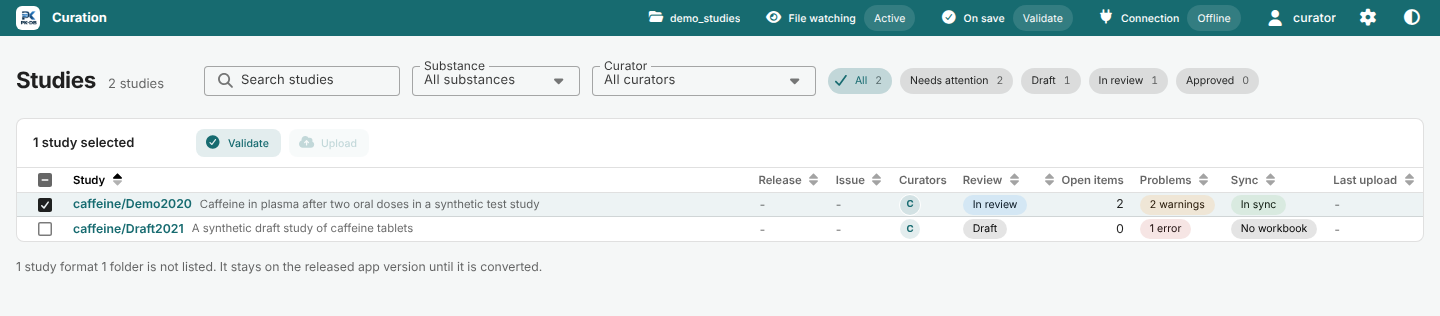
| Column | Shows |
|---|---|
| Study | The identity and the title. Two folders with the same identity are marked Duplicate identity. The tooltip of the identity shows it whole, and when the tables of the study name other substance folders, it lists them below it, such as + enalapril. |
| Release | The PKDB identifier of the release in study.json. |
| Issue | The GitHub issue of the study, from issue in study.json. GitHub is read with GH_TOKEN or GITHUB_TOKEN, see the environment table. |
| Curators | The curators, with names and pictures from the curator roster that comes with pkdb, also offline. |
| Review | The status of review.json (Draft, In review or Approved), and AI for an automatic curation. |
| Open items | The number of open review items. |
| Problems | The errors and warnings of the last validation, or valid, and what the study is doing, such as Validating. |
| Sync | The sync status of the workbook and the tables, see Data. |
| Last upload | The time of the last upload, with a link to the study on PK-DB. |
The search, the filters Substance and Curator and the status chips stand on one line with the heading Studies and the number of studies. In a narrower window the status chips move to a second line first.
Search studies matches the identity and the title, and the table follows it when you pause typing. Substance shows the studies of one substance: those in its folder and those whose interventions or data name it, such as aliskiren/Nussberger2002 under enalapril. It uses the rule of the substance labels of the study issues, see GitHub issues of studies. The app serves the substances it saved in the state directory and reads only the tables that changed; the first start in a workspace takes a few seconds before the filter is complete. Curator shows the studies of one curator of study.json, with the number of their studies. Me, the first curator, is the PK-DB user of the app, so it shows your own studies. The status chips All, Needs attention, Draft, In review and Approved count their studies. Needs attention lists the studies with errors, with a sync conflict, or with open items while they are in review. Click a column header to sort by it; every column except Curators sorts. The filters and the sort order stay while the app runs, also when you open a study and return, and start again in another workspace. Click a row to open the study.
Select studies with their checkboxes for the batch actions above the table. Validate queues a validation of each. Upload shows the server, the account and the studies, and then validates and uploads them. Upload needs a connected server and the API key of an account that may upload studies; the disabled button says what is missing. What a save starts is set for all studies with On save in the header.
Study format 1 folders are not listed. The line below the table counts them, and the app never changes them. They stay on the released app version until they are converted.
The study page
The header of a study is one line where its parts fit: its identity, its release, its issue and its provenance, the title of the publication with what the study is doing, such as Validating for a moment after a save, the PMID, the sync status, the problems, the review status select labelled Review, Open tables, Validate, Upload, and the More actions menu with Open folder, Open PDF (<name>.pdf in the study folder), Add table and Copy path. Where they do not fit, the title gets shorter first, and then the parts wrap onto more lines; a chip always shows its whole text. What the study is doing takes its room from the title, so the header keeps its height while a check runs. The header of the study and the tabs below it stand on a teal-tinted band, which sets them apart from the section below.
Tabs under the header switch between the sections Metadata, Data, Problems, Review and Activity, in the order of the work on a study. The tabs of Problems and Review count the problems and the open review items. At the end of the tab line is Last upload, the time of the last upload with a link to the study on PK-DB. A narrow window turns the tabs into a select, with the last upload below it. A study beyond the upload limits shows no sources and tables, because the app cannot read them; its Data section and the targets of its review items say so, and Problems names the limit. A study opens on Review when it has open items, on Problems when it has errors, and on Metadata otherwise.
The PK-DB website shows an uploaded study with the same views, read-only, on its study page, which the link of Last upload opens. Everyone sees Metadata and Data there; the curators of the study, the reviewers of a public study and administrators also see Problems and Review, the issue, the paper, the images of the sources and the raw extractions. The website shows the problems of the last upload. See The study page of the web interface guide.
The old addresses #/studies/<substance>/<name>/sources and .../tables open the Data section, with their query.
Metadata
The Metadata section edits study.json in forms.
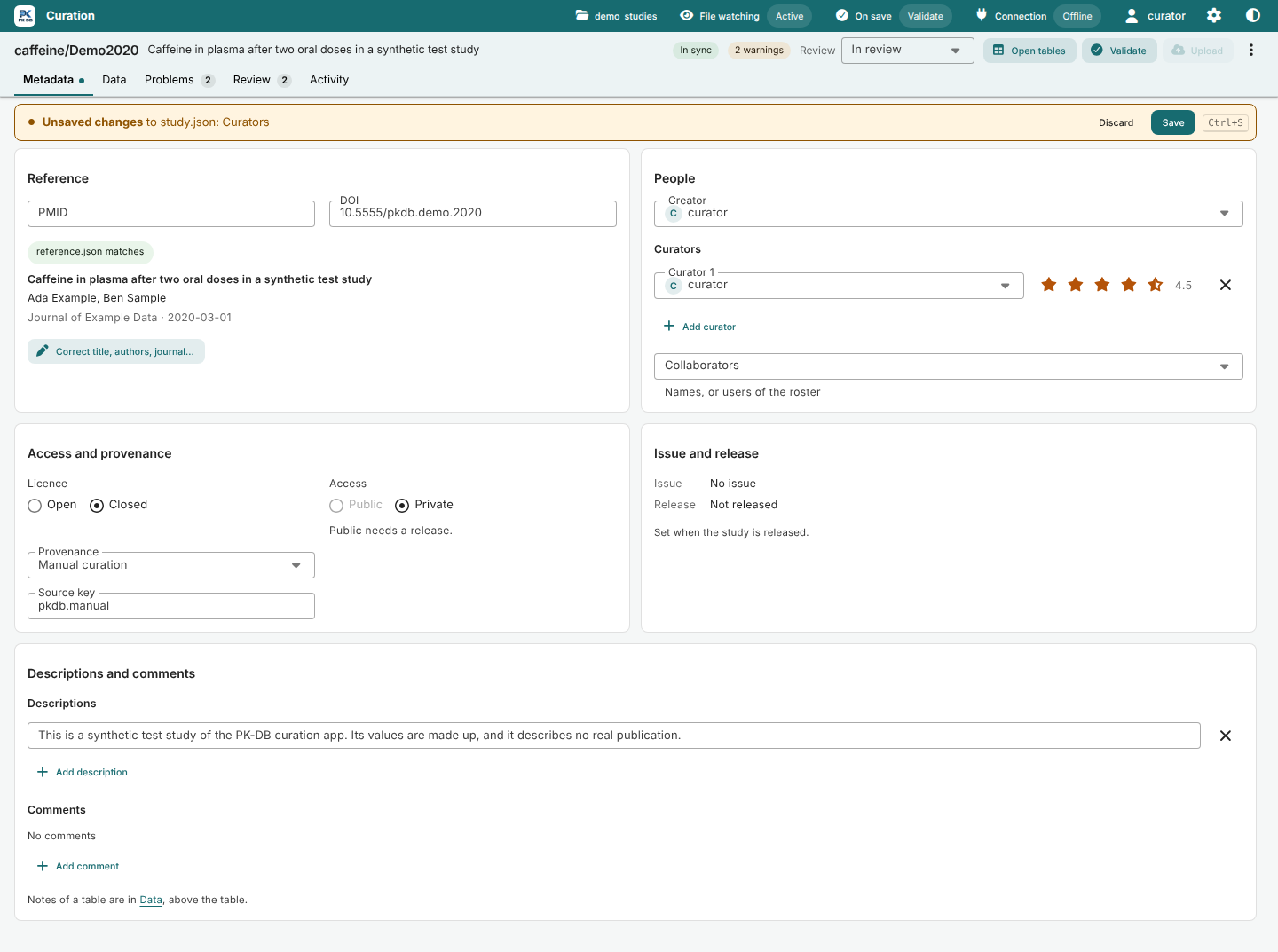
- Reference: the PMID and the DOI, whether
reference.jsonmatches them, and the title, the authors and the journal ofreference.json. Correct title, authors, journal... opens the Reference dialog. - People: the creator, the curators with a rating from 0 to 5 stars in half steps, and the collaborators, offered from the curator roster.
- Access and provenance: the licence, open or closed, and the access, public or private; public needs a release. The provenance is a manual curation, or an automatic curation with its method, version, run ID and assets. A data import is shown as the importer set it.
- Issue and release: read only.
pkdb neworpkdb issues sync --adoptsets the issue.pkdb release STUDY...sets the release of approved studies without open review items and validation errors; release through a pull request. - Descriptions and comments of the study. Each description is a text box without a label below the heading Descriptions. Each description and comment starts one line high and grows with its text up to ten lines. A comment shows the avatar and the name of the user who wrote it above its text. The notes of each kind of table are in the Data section, above the table. Notes of a kind that the study has no table of, such as after the table was removed, show in this card only when
study.jsonhas them: you can edit or remove them here, but not start them.
Edits stay in the form until you save them. The Metadata and Data sections edit one draft of study.json, and a banner under their section tabs shows its state. Without unsaved changes it says No unsaved changes to study.json, without buttons. With unsaved changes it turns amber and names the changed fields, such as Unsaved changes to study.json: Source key, Notes of the outputs, with Discard and Save. It names up to three fields and counts the others, such as and 2 more, and fewer when the names do not fit into its line. A new study.json that is not written yet shows new file, not written yet. After a save or a discard, the banner shows the outcome for a few seconds, such as study.json saved. The banner keeps its height in every state, so the form does not move when you start to edit. While there are unsaved changes or the banner shows a notice or a problem, it stays at the top of the window while the page scrolls; otherwise it scrolls with the page. The other sections of the study show the banner when they open with unsaved changes or with a notice or a problem of the last save, and keep it until you leave the section; after a save there it shows that there are no unsaved changes. Ctrl+S (Cmd+S on macOS) saves from anywhere on the study page, also a collaborator that you typed but did not add yet; without unsaved changes it does nothing. Discard drops the edits, and Undo brings them back for a few seconds. A dot on the tab of a section marks its unsaved fields: Metadata for the fields of this section, Data for the notes of the tables. Switching between the sections of the study keeps the edits; leaving the study with unsaved changes asks first. Save checks the whole document and writes it. When it is not valid, nothing is written, the fields with problems are marked, and the banner lists the problems of the fields that the section does not show with their field, such as a wrong PMID when you save from the Data section. A new PMID or DOI fetches reference.json for it; when the lookup fails, study.json is saved and the banner says why.
When study.json changes on disk while the form has unsaved edits, Save is refused and the banner offers Reload. Reload puts your edits on top of the new version and marks the fields that changed on disk. A field that changed on both sides keeps your edit, shows the value on disk, and offers Use the disk version. Without unsaved edits, the form follows the file on disk by itself.
The Reference dialog writes reference.json. Preview shows the metadata and what changes, and Save reference writes the previewed version. For a study without a PMID or DOI, the dialog searches a citation and offers Use DOI, which puts the DOI into the form; save study.json to fetch its reference. See Literature reference metadata.
Data
The Data section shows the tables of the study beside their sources. It has three panes: the navigator, the source pane and the rows pane.
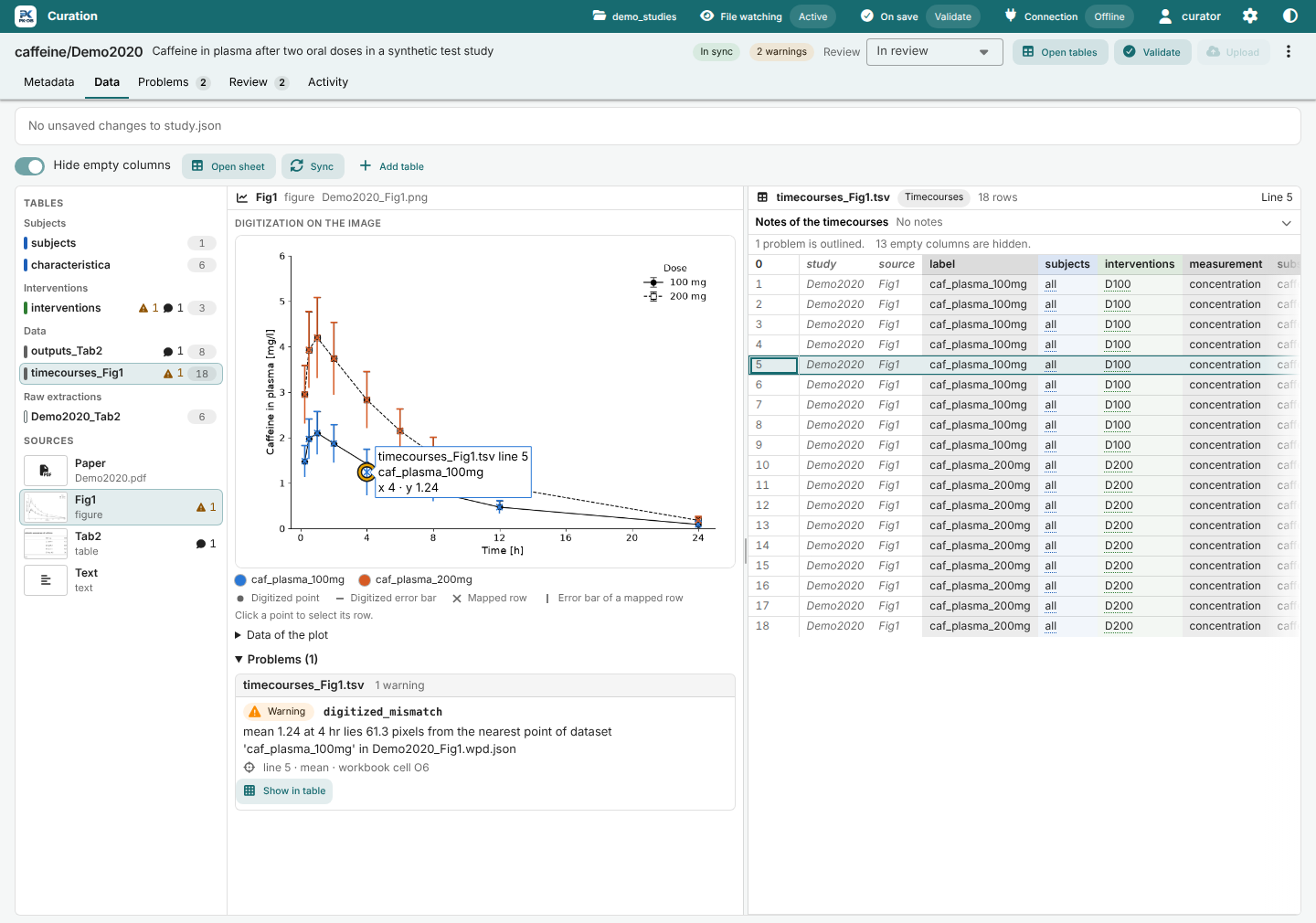
- The navigator lists the tables first, in the order of the workbook sheets, under the headings Subjects (
subjects.tsvandcharacteristica.tsv), Interventions (interventions.tsv), Data (outputs_<source>.tsv,timecourses_<source>.tsvandscatters_<source>.tsv) and Raw extractions (<name>_<source>.tsv). A bar in the color of its heading marks each table: blue for subjects, green for interventions and gray for data; a raw extraction has an outlined gray bar. A table shows its name without.tsv, the number of its problems after a red error icon, or after an amber warning triangle when all of them are warnings, the number of its open review items after a speech bubble, and the number of its rows on a gray pill. The navigator is as wide as its widest entry, a table or a source with its counts, from 232 up to 320 pixels; a longer name is cut at its end (hover it to read it in full). The sources follow: each paper table (Tab…), figure (Fig…) and the text (Text), with a thumbnail of its image and its problems and open review items. Paper comes first among the sources: the PDF of the study,<name>.pdf, and the other PDFs at the top of its folder, such as<name>_Supp.pdf. It names the PDF that the pane shows,<name>.pdfuntil you choose another one, and shows the number of the other PDFs on a gray pill, such as +1; hover the pill to read their names. Without any PDF it is disabled and says No.pdf . In a window narrower than 1100 pixels the navigator becomes two selects in the toolbar, Table, with the tables under the same headings and a dot in their color, and Source. - The source pane shows the selected source. A table shows its image and its raw extraction
<name>_<source>.tsvas a grid with spreadsheet column letters. A figure with a WebPlotDigitizer project<name>_<source>.wpd.jsonshows the digitization on the image: dots for the digitized points, short bars for the digitized ends of error bars, crosses for the mapped rows and lines for their error bars, from the low to the high end. A timecourse row, or an outputs row with a time, that has a statistic has an error bar around its value, which is themean, else themedian, else thegmean, in the plot and on the image. The bar shows the first statistic that fits, with the statistic thaterror_typenames first: around agmeanthat isgsd, elsesd, elsese, and around ameanormedianit issd, elsese. Ansdorsegives the value minus and plus it, and agsdgives the value divided and multiplied by it. When the statistic thaterror_typenames is empty, the digitizederror_bargives it, as validation derives it; a digitizederror_baris mirrored around the value except whenerror_typeisgsd. A negativesdorse, or agsdbelow 1, is skipped and the next statistic is tried; a row with no valid statistic has no bar. A log axis cuts an error bar that reaches 0 or below at the axis, and on the image of a log digitization such a bar reaches the bottom of the image. Hover a point to see its file, TSV line, series and values. Data of the plot lists every point in a table, and the series without a dataset in the project are plotted below the image. A plot draws the rows oftimecourses_<source>.tsvas one series perlabel, and the rows ofoutputs_<source>.tsvthat have atimeas one series per subjects, interventions, measurement, substance and tissue, such asall · D150 · concentration · caffeine · plasma; both are lines and markers by time, and scatters are points. Outputs are drawn by time only when time is the x axis of the figure: when the figure has timecourse rows or an outputs series at two or more times. Outputs without a time are not drawn, and neither are outputs of a figure whose every outputs series has one time, such as the change of HbA1c at the end of the treatment per dose or per exposure quartile, whose x the outputs do not name. A figure without rows to plot says No rows over time or scatter rows to plot. A figure without a project shows its image and a plot of the mapped rows. Above a plot of mapped rows, x and y switch each axis between lin (linear) and log (logarithmic). Without a choice, an axis has the scale of the project of the figure (isLogX,isLogY), else linear. The app keeps the choice for each figure with its settings (see--state-dir), so it stays afterpkdb curatestarts again. A log axis shows only values above 0: a note below the switches says how many points it leaves out, such as a value of 0 before the dose. Data of the plot still lists them. In a plot of mapped rows, a point whose row has a problem has a ring, solid and red for an error, dashed and amber for a warning. Its hover label lists the severity and the code of at most five problems, the messages of the first ones as far as they fit, and how many more problems there are; Data of the plot lists the problems of every row in the column Problems, also of a row whose point a log axis leaves out, which has no ring. Fit and 100 % at the end of the line above the pane fit the image of a table, or of a figure without a project, into the pane, or show it at its full size, which scrolls sideways; the browser remembers the choice for you. A missing image or raw extraction shows the name of the file to add. A paper table without an image whose raw extraction is its source, such as unpublished data, says so in place of the image. The problems of the files of the source are listed at the end, by file, as in the Problems section. When the pane is taller than its view, its content fades out at the bottom; scroll it to read the rest. - Paper shows the PDF in the source pane, drawn inside the app: the pages one below the other, each drawn when it comes into view, with their text, which you can select and copy. The head of the pane names the PDF, offers the other PDFs of the folder in a select, shows the size, and has New tab, which opens the PDF in a tab of its own without the app bar, whose head links back to the PDF in the Data section, and Open in PDF program, which opens it with the program of your system, as Open PDF of the study header does for
<name>.pdf. The toolbar below it has Previous page and Next page with the page of the pages (type a page and press Enter to go there), Zoom out and Zoom in with the zoom, Fit width (when the PDF opens), Fit page or 100 %, and Find in the paper: type a word, press Enter for the next match and Shift+Enter for the previous one; the count beside it says which match of how many is selected, and every match is highlighted. Ctrl+F (Cmd+F on macOS) inside the pane goes to the find field. The PDF keeps its page and zoom while you choose tables of other sources and come back to it. When a PDF program saves the PDF again, the pane and its tab show the new PDF on the same page. A large PDF shows its first page quickly: the app reads only the parts of the file that the pages in view need. A PDF that is missing, damaged or protected by a password shows an alert in the pane; open a protected PDF in the PDF program. A tab whose address names a file that is no PDF of the study says<file> is not a PDF of this study., and<file> is no longer in the study folder.while the PDF is gone from the folder. - The rows pane shows the selected table, read only. Its columns are tinted by what they name: the
subjectsandparentcolumns and the columns that end in_subjectsblue, theinterventionscolumns and the columns that end in_interventionsgreen, and the other columns of the data gray. Every column ofsubjects.tsvandcharacteristica.tsvis blue, and every column ofinterventions.tsvgreen.studyandsource, which say where a row comes from, are in muted italics and not tinted. A raw extraction is not tinted. The header of a column is a stronger tint of its cells. The head of the pane shows the file, the kind of the table in a chip in the color of its heading (outlined for a raw extraction), such as Subjects or Timecourses, the number of its rows, for a shared table the Source select, and Line N while a row is selected; the notes about the rows, such as how many rows open review items target, follow on a line below that wraps. The header row of a table is line 0 and its first entry line 1, so line n is row n + 1 of the sheet and line n + 1 in a text editor; a raw table starts at line 1. The rows that open review items target are amber, and the cells with problems are outlined, and so are a header cell or a line number when a problem is about the header or the whole row. Rest the pointer on an outlined cell for a moment, and a tooltip lists its problems: the severity, the code, the message and the hint of each, at most five, and how many more. On a line number the tooltip lists every problem of its row, and on the line number 0 of the header every problem of the header. With the keyboard, a line number that has the focus shows the problems of its row, and the line number 0 of the header is a Tab stop while the header has problems. Escape hides the tooltip. Click a row to select it; the selected row is framed. A name in asubjectsorparentcolumn, or in a column that ends in_subjects, has a dotted blue line below it, and a name in aninterventionscolumn, or in a column that ends in_interventionssuch asy_interventionsof a scatter, a dotted green line: click it to open its row insubjects.tsvorinterventions.tsv, selected. Browser Back returns to the row you came from, selected. The source pane shows the source that the row of the name names, or keeps the paper while it shows. Each name of a cell of several names, such asD1,D2, is a link of its own; a name that the table does not have is plain text, and the Problems section lists it. Thenamecolumn ofsubjects.tsvandinterventions.tsvhas no links. With the keyboard, Tab reaches the line numbers, the Up and Down arrow keys move between them, Home and End go to the first and the last row, and Enter selects the row. The Right and Left arrow keys move from a line number to the names of its row and back, and Enter opens the row of the focused name.
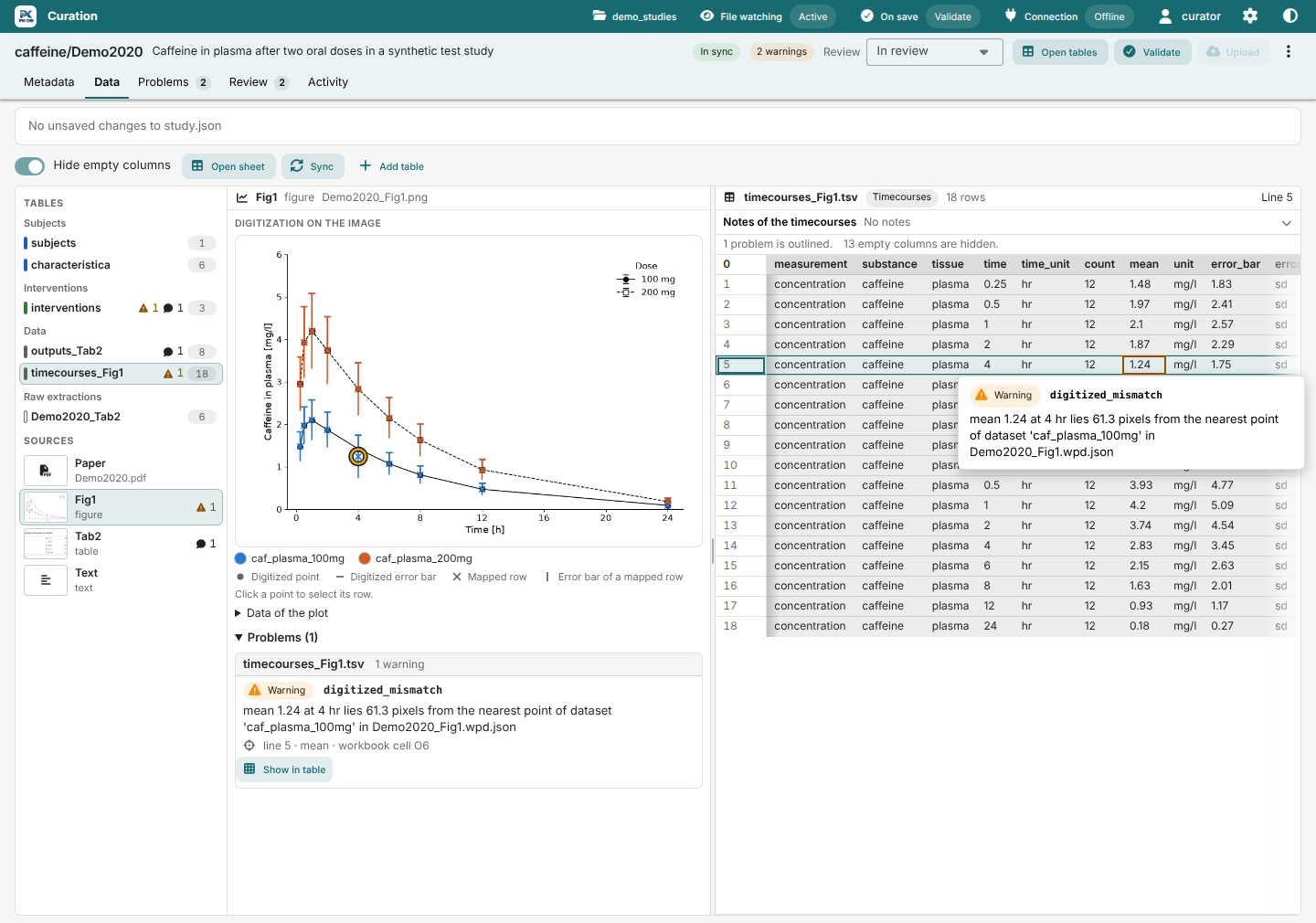
The separator between the source pane and the rows pane resizes them; drag it or focus it and press the arrow keys. The app remembers the split. In a window narrower than 960 pixels the panes stack, the source above its rows.
The selection is linked. Choose a table in the navigator, and the source pane shows its source: a table of one source, such as outputs_Tab2.tsv or the raw extraction Demo2020_Tab2.tsv, belongs to Tab2, and a shared table keeps the source that is shown. Choose a source, and the rows pane shows the first table that it owns, unless it already shows a table of the source; a source that owns no table, such as the text, keeps the current table when it is a shared table, else opens the first table that names the source in its rows. Click a row of a shared table, and the source pane shows the source that the row names. Click a row, and the source pane rings its point on the plot or the image. Click the cross of a mapped row, and the rows pane selects its row. The selection is in the address of the page as source, file, line and column, so that Show in table of the Problems and Review sections and the line numbers of a review target open the row. Opening the row of a name adds a step to the history of the browser, so that Back returns; the other changes of the selection replace the address. The section opens on the first table with problems or open review items, else on the first table, beside the source that owns it, else beside the paper, else beside the first source, and keeps the selection in the address, so that it stays when the problems change. Choosing Paper keeps the table and its row, and the address has source=paper while the paper shows, with pdf=<file> once you choose a PDF in the head of the pane, so that a reload and the link back from its tab show that PDF. A PDF that the folder lacks shows the first one.
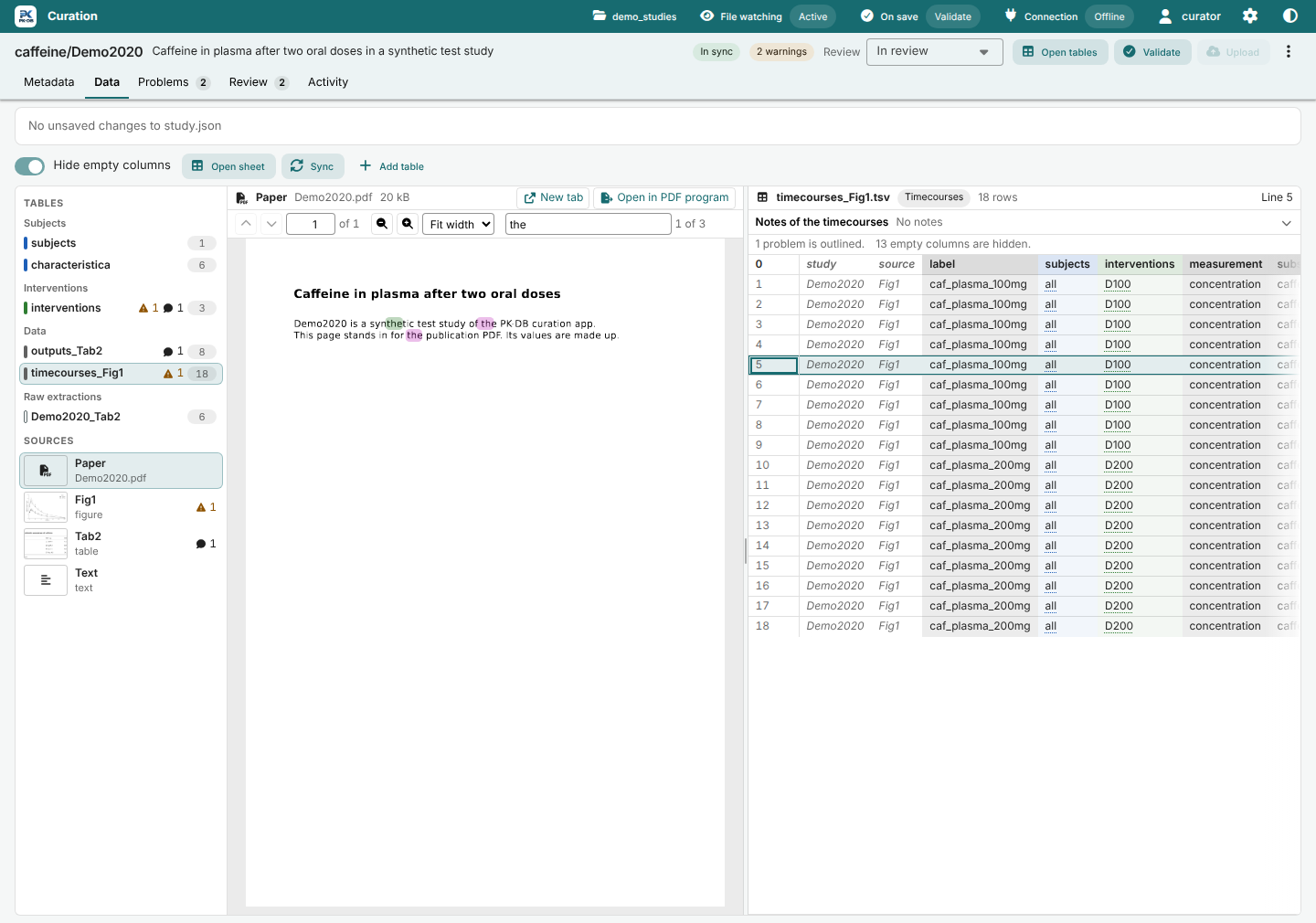
The mapped rows of a source are the rows of its tables outputs_<source>.tsv, timecourses_<source>.tsv and scatters_<source>.tsv, and the rows of subjects.tsv, characteristica.tsv and interventions.tsv whose source names it. These three tables are shared by the sources and name the source of each row, so the rows pane shows all of their rows and has a Source select in its head: All, each source that the rows name, and No source, each with its number of rows. The app keeps the choice of each table while the study is open. When no row has the chosen source, the rows pane says so, with a Show all rows button. A row that the address names always shows. Hide empty columns hides the columns without values; it is on when the section opens, and the line above the grid counts the hidden columns.
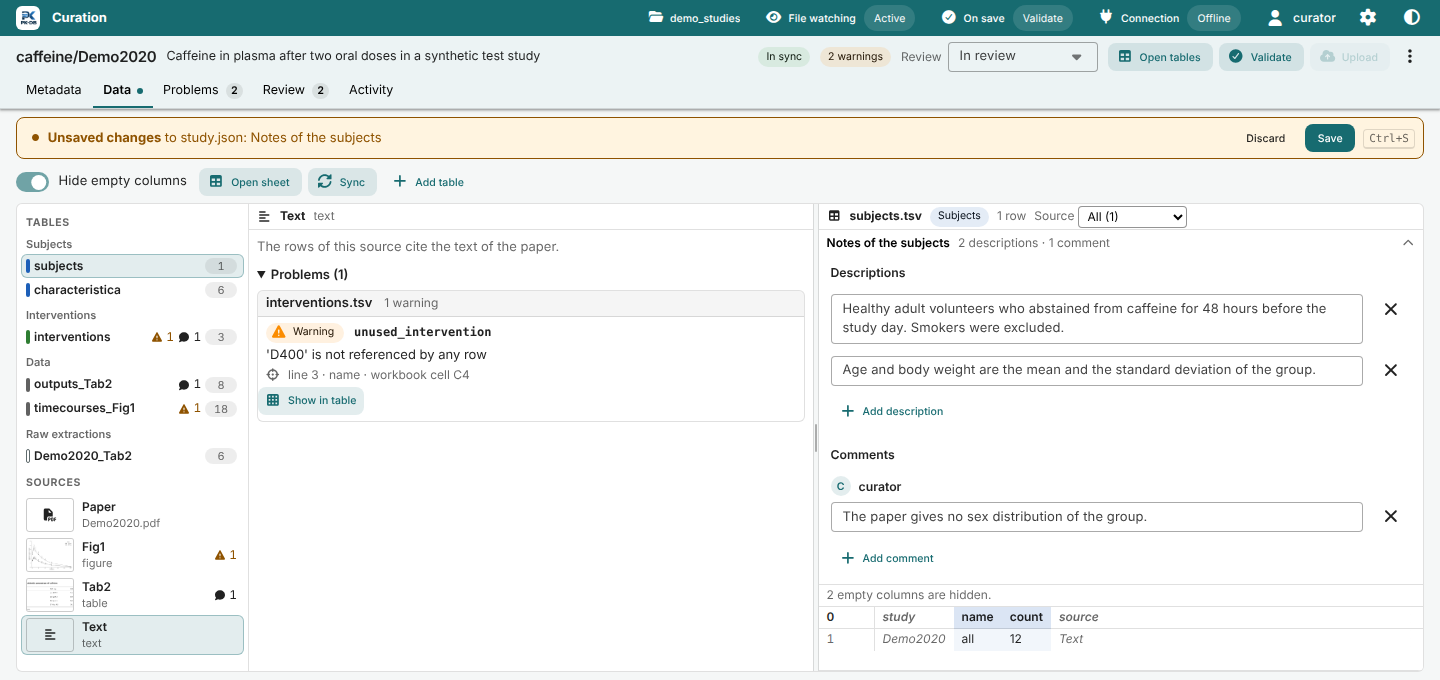
Above the rows of a table, a line such as Notes of the subjects says what study.json notes about that kind of table, such as 2 descriptions · 1 comment or No notes. Click it to open the descriptions and comments and edit them, and again to close them. Notes belong to a kind of table, so every outputs_<source>.tsv shows the same notes of the outputs, and a raw extraction has none. The notes start closed, open by themselves when a field in them has a problem, and stay open or closed for each kind while the study is open. Edits go into the draft of study.json that the Metadata section edits too: the banner under the section tabs names them with Save, Discard and Undo, and the Data tab has a dot until you save. While study.json is not valid, the notes say so and list the problems in them, with a link to the Metadata section.
The toolbar above the panes has, in this order: in a window narrower than 1100 pixels, the selects Table and Source; the switch Hide empty columns, while a table is shown; Open sheet, while a table is shown, which opens the workbook <name>.xlsx at the sheet of the table; Sync, which syncs the workbook and the tables at once; and Add table, which adds a sheet to the workbook, see Work with the workbook. A line of text ends the toolbar: after a sync in the app it says what the sync changed, and while the status is not In sync it says what the status means. The sync status itself is in the study header.
| Status | Meaning |
|---|---|
| In sync | The workbook and the tables agree. After a sync in the app, a line says what it changed. |
| Workbook open | The workbook is open in a spreadsheet program. Close it to sync. |
| Syncing | A sync runs. |
| Changed | The next sync changes files. |
| Conflict | The workbook and the tables changed the same rows. |
| No workbook | The study has no workbook yet. Open tables creates it. |
| Unknown | The workbook or the tables cannot be read. |
| Not checked yet | The app has not checked the workbook and the tables yet. |
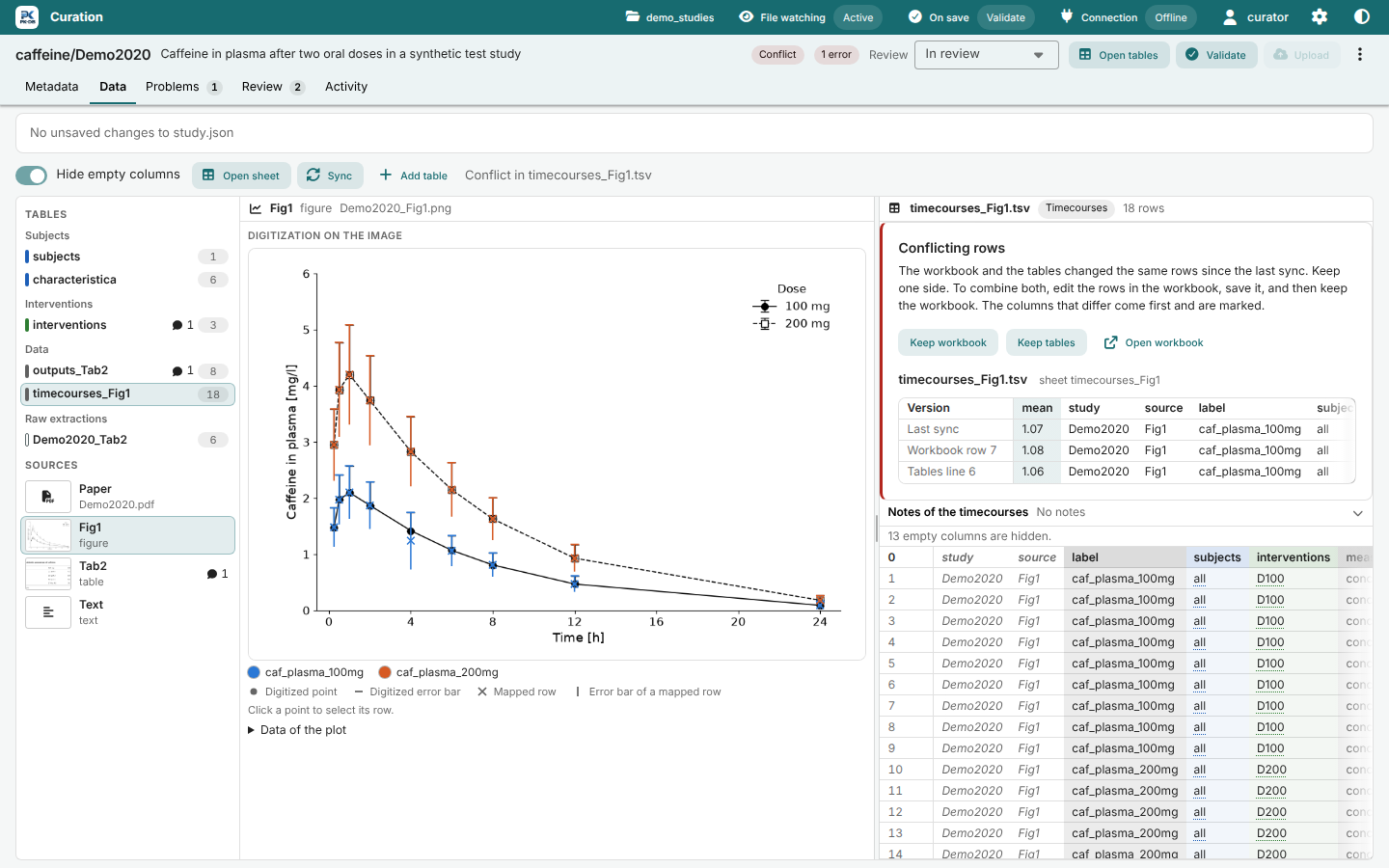
When the workbook and the tables conflict, the panel Conflicting rows shows at the top of the rows pane, or above the panes when the study has no table yet, with the rows of each conflicting table in one grid: the rows of the last sync, the rows of the workbook and the lines of the TSV file. In a table with a header, a workbook row is the line of the table plus one, because the header of a table is line 0 and the first row of the sheet is the header; a raw table has the same numbers. The columns that differ come first and are marked. Keep workbook or Keep tables resolves all conflicts with one side. To combine both, edit the rows in the workbook, save it, and keep the workbook. Open workbook opens it at the sheet of the shown table. Validation and upload wait until the conflict is resolved.
Problems
The Problems section lists the issues of the last validation by file. Each shows its severity, code and message, and where it is: the line and the column of the table and the address of the cell in the workbook, such as line 5 · mean · workbook cell O6. The header of a table is line 0 and its first entry line 1, so line 5 is row 6 of the sheet; a raw table starts at line 1. A problem of the workbook itself names the row and the cell of its sheet. Spelling suggestions follow Did you mean:.
Filter by All, Errors or Warnings. Show in table opens the Data section at the cell of the issue. Open in tables opens the workbook at the sheet of the table of the issue, with the cell of the issue selected when it has one. Show notes opens the notes of a kind of table above its first table in the Data section, for a problem in those notes in study.json. Open opens another file of the study, such as study.json, in its default application, and Open tables opens the workbook.
Acknowledge marks a warning as expected; errors cannot be acknowledged. Neither can the warnings of a sync that stopped before the validation, such as a workbook saved during the sync: they are about the workbook, not about the study files. It asks for a reason and writes a resolved review item that acknowledges exactly this warning: a warning at a row of a data table at its row and column, and a warning of a whole file by its key, such as the dataset of a WebPlotDigitizer project or the review item of review.json. Other warnings with the same code, also later ones, stay listed. The warning leaves the list after the next validation. The acknowledged warnings are listed below the problems with their reason and a link to their review item. An acknowledgement that names only a file, as the app wrote before acknowledgements were exact, covers every warning of its code in that file, also later ones, and the list says so. Dismissing the review item brings its warnings back.
Review
The Review section lists the items of review.json: questions, uncertainties and issues.
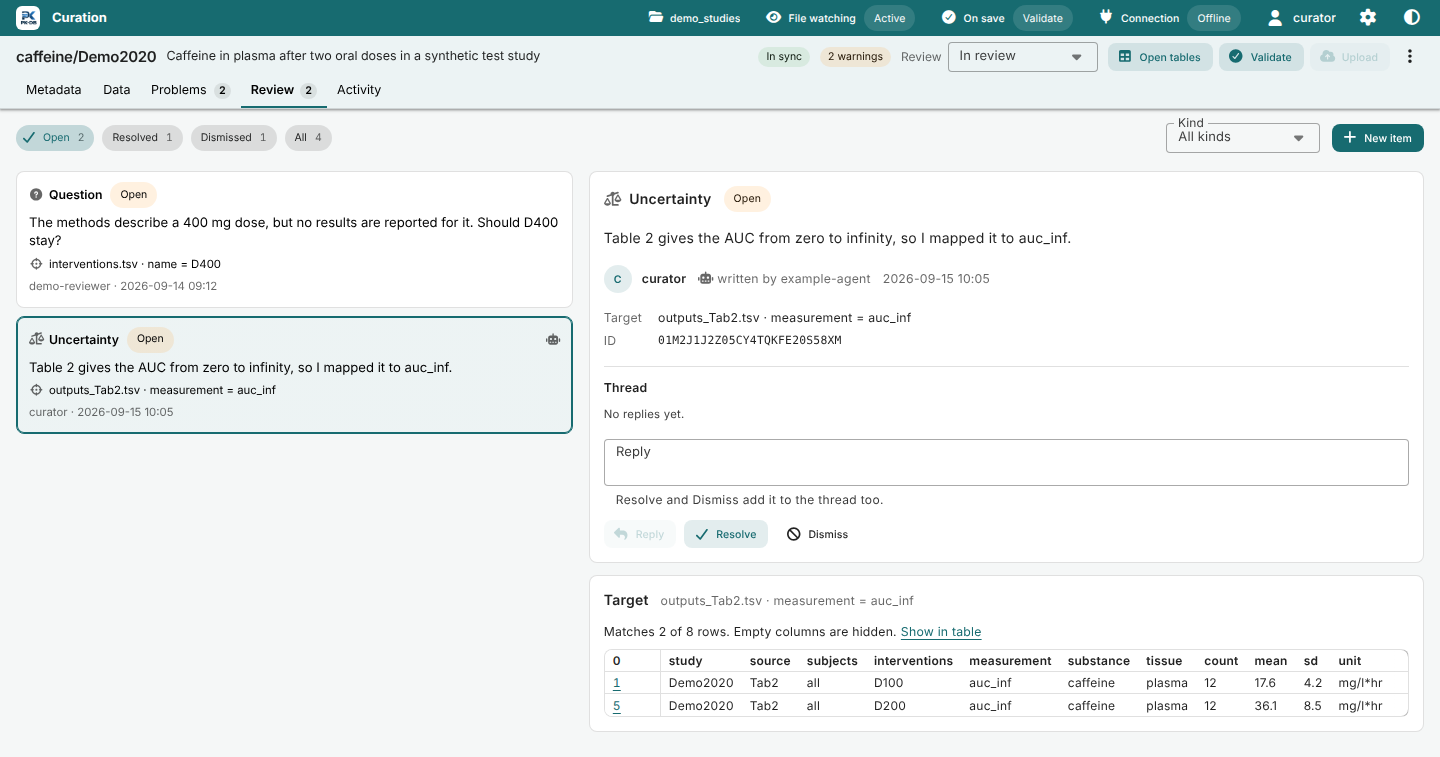
Filter the items by state (Open, Resolved, Dismissed, All) and by kind. A card shows the kind, the state, the target, the code of an acknowledged warning, a robot for an item of an AI agent, and the number of replies. Select a card to see the item with its thread. Reply, Resolve, Dismiss and Reopen change it. For an open item, Resolve and Dismiss also add the text of the reply field to the thread; for a resolved item, Dismiss and Reopen do. A dismissed item has no reply field and can only be reopened. New item adds an item about the whole study, a file, the rows with given column values, or a column.
Below the item, the target shows the rows that it matches, with Show in table. When the target is a series of a digitized figure, the label of timecourses_<Fig>.tsv or the name of scatters_<Fig>.tsv, the figure is drawn too, with that series emphasized and the other series faded.
The review status select in the header, labelled Review, sets Draft, In review or Approved. Approved needs zero open review items and zero validation errors. Otherwise the app refuses and says why, with a link to the open items or the problems. Approving records you as approved_by, adds you to the reviewers, and stores the time; any other status removes the approval. While a study is approved, items cannot be added or reopened: set the status to In review first.
Activity
The Activity section lists the jobs of the study, newest first: validations, uploads, and the changes made in the app, such as Saved study.json or a sync of the workbook. An entry shows its status, such as Succeeded, Problems found, Failed, Canceled, Conflict or Outcome unknown, and automatic when the app started it by itself. Cancel cancels a queued job, Download report saves the validation report as a JSON file, Open on PK-DB opens an uploaded study, and Review opens an upload with an unknown outcome. A failed change in the app, such as an Open tables whose program did not start, shows what went wrong below its message, with Details and Copy details as in the alert of the action, see Errors and the log; so does a job that could not read the source files or failed unexpectedly. A job that failed for a reason that its message gives, such as a refusal of PK-DB, a failed connection or a reference that could not be looked up, shows that message alone.
The app keeps the last 100 finished jobs of all workspaces. Clear finished history removes the finished jobs of the current workspace and deletes their reports, after you confirm it. It keeps the queued and running jobs, the uploads with an unknown outcome, the last upload of each study, which the overview shows as Last upload, and the current report of each study. The button is disabled when there is nothing to clear.
What happens on save
The app scans the workspace every second. When the files of a study have not changed for a second, it queues a job for the study, unless On save is Off. Several file events of one save make one job, and quick saves in a row make one job for the newest version. Changes made in the app, such as Save in the Metadata section, count as saves.
Each scan reads the size and modification time of every file of a study, but it lists the entries of a folder only when the folder changed in the last 30 seconds, and otherwise once every 30 seconds, so even a large workspace takes little processor time. Some file systems, such as some network drives, leave the modification time of a folder as it was when files are added, removed or renamed in it. There, such a change can show up to 30 seconds late, until the listing every 30 seconds notices it; from then on the app lists every folder on each scan until it restarts or you choose another workspace.
A job:
- creates
reference.json, or replaces it, when it does not describe the PMID or DOI instudy.json; - syncs the workbook and the tables as
pkdb tables syncdoes, and formats the tables. A conflict ends the job with the status Conflict, and nothing else runs. Tables or a workbook that cannot be read end the job with their problems; - validates the study;
- uploads the study, when On save is Upload and the validation found no errors.
| On save | A save |
|---|---|
| Validate | Syncs, formats and validates the study. This is the default. |
| Upload | Syncs, formats and validates the study, and uploads it to the configured server when it has no errors. |
| Off | Marks the study as changed. Validate or upload it yourself. |
With a server and without offline mode, validation uses the vocabulary of the server. Offline, or without a server, it uses the same order as pkdb validate --offline: vocabulary.lock.json at the root of the pkdb_data checkout that contains the study, else the cached vocabulary of the server, else the vocabulary that comes with pkdb. A local result does not show that the server accepts the study.
On save in the header sets what a save starts, for every study of the workspace. Its menu lists Validate, Upload and Off with what a save then does, and marks the one that is set. Upload first shows the server, the PK-DB account and the workspace, and asks you to confirm. After that, every save uploads the study without asking, and an upload can replace the study on the server. Offline, or without an account that may upload, Upload is disabled and the menu says what is missing. The app keeps On save for each workspace, server and PK-DB account, also after pkdb curate starts again; working offline counts as no account. Another workspace, server or account starts at Validate. Before the app has confirmed the account (at start, or after a failed connection check), the action of the context without an account applies, which starts at Validate. When the account can no longer upload, uploads on save wait and the study says so. A change of On save applies to the next saves: a save made before it that has no job yet gets none, so validate it yourself. Queued jobs and the jobs that a pause canceled keep their action.
When the app starts or opens a workspace, it validates each study once, unless On save is Off; switching On save from Off to Validate or Upload then validates the studies that were not validated yet. It never uploads changes that were saved while it was not running. If you save again during an upload, the upload sends the version that it started with, and the newest version follows in the next job.
File watching in the header pauses and resumes the automatic actions. While they are paused, saved files wait and the queued jobs are canceled. Resume queues those jobs again with their own action, so a queued validation stays a validation; a study saved during the pause follows On save. File watching runs as long as pkdb curate runs, also when the browser tab is closed.
When the connection fails during an upload, the outcome of the upload is unknown. The same holds when you stop the app after an upload started sending the study, also while the server validates and saves it: after the next start, its Activity entry says Interrupted by previous shutdown; inspect before retrying. An upload that you stop before it sent anything is canceled. With an unknown outcome, the study shows Upload outcome unknown and does not upload again until you check it. A failed connection also pauses the automatic actions, and Resume automatic actions first asks the server whether it has the uploaded version. Review, in the overview or the Activity section, shows the server of the earlier upload. Once you checked the server, tick I checked the server. Upload this study again. and choose Validate and upload again. The new upload can replace what the earlier one saved.
Work with the workbook
Tables are edited in the workbook <name>.xlsx, not in the app. Open tables syncs the study, creates the workbook when it does not exist, and opens it in the default application for .xlsx files. The workbook opens at the sheet where it was left. Open sheet in the Data section opens it at the sheet of the shown table, and Open in tables of a problem at the sheet of its table with its cell selected. The app writes the sheet and the cell into the workbook just before it opens it. This changes no cell, so it starts no sync and no validation. A workbook that is open already cannot be switched from outside, and neither can one of a study that is being validated or uploaded: it opens as it is. When the workbook cannot be switched, a notice names the sheet and the cell to go to, and gives the reason: the workbook is already open (The workbook is already open. Go to sheet outputs_Fig6, cell Y97.), the study is being validated or uploaded (The study is being validated or uploaded. Go to sheet outputs_Fig6, cell Y97.), or the view of the workbook could not be changed. When the sheet is hidden, the notice asks you to show it (Sheet outputs_Fig6 is hidden in the workbook. Show it, then go to cell Y97.), and when the workbook has no sheet of the table, it says so (The workbook has no sheet outputs_Fig6.). Save the workbook, and the app syncs it into the tables, formats them and validates the study. The app never replaces a workbook that is open; close it so that the app can update it from the tables. See Edit tables in a workbook.
Add table, in the study menu or the Data section, adds an empty sheet to the workbook: a table of outputs, timecourses or scatters for a source such as Tab3, Fig2A or Text, or the raw table <name>_<source> of a paper table. Close the workbook first. The TSV file appears when the sheet has content and you save the workbook. Validation needs the image <name>_<source>.png of every figure, and of every paper table the image or the raw table <name>_<source>.tsv, which is the source of data that no image shows, such as unpublished data; the dialog says when the raw table makes the image unnecessary.
When the workbook and the TSV files changed the same rows since the last sync, the sync stops and reports a conflict. Resolve it in the Data section, or with pkdb tables sync --keep workbook or --keep tables.
WebPlotDigitizer projects
Digitize a figure in WebPlotDigitizer 4 on the image <name>_<source>.png of the study, and import the project:
The command takes a project .json file or a saved .tar project, checks it against the image, and writes <name>_<source>.wpd.json. When the study has no image yet and the .tar project holds exactly one PNG image, it writes the image too. Name each dataset after its series: the label of a timecourse for its central values, <label>;error_bar for the ends of its error bars, and the name of a scatter for its points. A dataset of an outputs series has the series name, which is the cells subjects, interventions, measurement, substance and tissue of its rows, as printed, joined with · and without the empty ones, such as all · D150 · concentration · caffeine · plasma.
The Data section then draws the digitized points and the mapped rows on the image. Validation warns about a dataset without rows (unknown_dataset); a dataset named like an outputs series counts as having rows. It also warns, as digitized_mismatch, about a mapped row more than 2 pixels away from every point of its dataset, and about the points of a dataset that have no mapped row within 2 pixels. Validation compares only the rows of timecourses and scatters with the project, not the rows of outputs. pkdb plot draws the same comparison into PNG files, for agents. See Raw extraction for the accepted projects.
AI-curated studies
An AI agent curates a study with the same files and the pkdb command line. It edits study.json with pkdb study, writes the tables and the raw extractions, and adds review items with pkdb review for what it is not sure about. Review commands name the agent with --agent or PKDB_AGENT. The app shows the work of an agent:
- AI in the Review column of the overview and AI curated with the method in the study header, when the provenance in
study.jsonis an automatic curation; - a robot on the cards of the items of the agent, and written by with the name of the agent on the selected item;
- the raw extraction of each paper table in the source pane of the Data section, beside its mapped rows.
Agents may add, answer, resolve and dismiss items, but a person approves a study: pkdb review status approved refuses to run for an agent, and the app always writes as a person. See the curation commands in Python client.
Local API
This section is for developers. The front end talks to the local server through /local/ routes. Every route except POST /local/session, which takes the launch token, needs the session cookie. Writes also need the CSRF header and a JSON body of at most 1 MiB. GET responses carry an ETag and answer 304 to If-None-Match, so the app polls cheaply. GET /local/state takes its ETag from a revision that every change of the state of pkdb curate raises: it builds the state once per revision and answers a poll of an unchanged state with 304 without building it.
GET /local/state: the workspace, the connection, the author of writes, On save inmode(validate,uploadoroff), the study rows with the counts of their problems and their substance folders insubstances, and the jobs. The study page lists the problems.GET /local/studies/{substance}/{name}: the study page with metadata, review, problems (each says whether a review item can acknowledge it), acknowledged warnings, sync status and conflicts, sources, files, the table files with their kinds in the order of the workbook sheets, the PDFs at the top of the folder with<name>.pdffirst, each with its URL, size and a version of its content that changes when it is written, the rows and the digitized series of each review target, a version of its files that changes with their content, and jobs. Below it,.../tables/{file},.../sources/{source}and.../files/{file}serve one table, one source view and one registered image or PDF. The file route sends a file in pieces of 64 kB and answers one byte range (Range: bytes=...) with206andContent-Range, a range beyond the end with416, and several ranges with the whole file; a PDF comes inline with its name.POST /local/studies/metadata,POST /local/studies/reviewandPOST /local/studies/tableswritestudy.json, changereview.json(add, reply, resolve, dismiss, reopen, status, acknowledge), and open, sync, resolve or add to the workbook. Theopenaction takes an optionalfile, a table file of the study, and an optionalcell, a workbook address such asY97: the workbook then opens at the sheet of the table, with the cell selected. Its answer hasnotice, the text that names the sheet and the cell when the workbook could not be switched, else null.POST /local/studies/tables/previewandPOST /local/studies/review/previewread without writing: what Add table would add for a kind and a source, with the sheet, the file, the image and why it would refuse, and which rows and digitized series a draft review target selects. Theaddaction ofPOST /local/studies/tablestakes the samekindandsource.POST /local/modewith{"mode": "off"}(orvalidate,upload) sets On save for the workspace, the server and the account, and answers the new state. It answers400foruploadoffline or without an account that may upload, and for a body with other fields, such as theidsof earlier versions.- The other routes cover the session, the workspace and the folder browser, the settings, the jobs, pause and resume, uploads with an unknown outcome, references, opening files, the history and the reports.
A stale revision answers 409 with the current document, and an invalid document answers 422 with its issues. A study beyond the upload limits answers 413 on the routes that read its tables and sources, and its study page lists the limit as the first problem, without tables, sources or review targets. A study that cannot be read answers 422 with its issues. Writes are refused with 403 and no_user without a user, or user_mismatch when the API key belongs to another account than the configured user. Every write of the app shows as a finished entry in the activity of the study. It starts no job of its own; the watcher validates the changed files as after any save.
Every failed request answers the same JSON body: error says what could not be done, such as Could not open the tables of caffeine/Demo2020.; code names the failure in snake case, such as open_failed; detail is the type and the text of the error, or for a command its name, its exit status and the last 2 kB of its stderr; action names the request, such as Open tables (POST /local/studies/tables); request_id has 8 hex characters, which the log names too; time is ISO 8601 in the local time zone. Only an unexpected error has a traceback, and a failed write or opened file of a study, when the failure is logged or unexpected, has the activity_id of its entry in the activity (refusals such as 409 or 422 have none). Refusals keep their own fields (issues, file, revision, content, paths); a write refused without a user keeps its code no_user or user_mismatch in error and its text in message. No body, report or log line contains the API key, GH_TOKEN, GITHUB_TOKEN or the tokens of the session.
Build from source
A published pkdb package contains the built app, so curators need no Node. The app bundles PDF.js (Apache-2.0), the viewer of the paper, and the Inter font (SIL Open Font License 1.1), so that text has the same width on every system; the build copies the worker, character maps, standard fonts and JavaScript image decoders of PDF.js with their licenses to pdfjs/ beside index.html, and the licenses of the fonts to assets/. A source checkout needs Node once, to build the app into python/src/pkdb/curation/static/ (Node 24.21.0 and npm 12.1.0):
Build it again after you change the app or update the checkout. For development, npm run dev:curation serves the app with live reload at http://localhost:8090 and forwards /local and /avatars to a running pkdb curate, whose address it reads from PKDB_CURATION_URL:
# Terminal 1, in the repository:
uv run --project python pkdb curate /path/to/workspace --no-browser --port 43117
# Terminal 2, in frontend/:
PKDB_CURATION_URL=http://127.0.0.1:43117 npm run dev:curation
Then open http://localhost:8090/ followed by the #token=... part of the launch URL that pkdb curate printed. The browser tests of the app run against the real pkdb curate; see Native frontend and frontend checks.
Troubleshooting
Errors and the log
When an action fails, or the app cannot read a study, a table or a source, its alert says what could not be done, in bold, and below it what went wrong, such as CalledProcessError: xdg-open exited with status 4 followed by what the command printed. Details shows the request with its method and path, the status and the code, the type of the error, the request id and the time, the log file and, for an unexpected error, its traceback. Copy details copies the message, the detail, the request, the status, the code, the request id, the time and the traceback as Markdown, ready for a GitHub issue. A failed change of a study is also listed in its Activity; Show in Activity opens its entry.
pkdb curate writes every failed action and every unexpected error with its traceback to logs/curation.log in its state directory: ~/.cache/pkdb/curation/logs/curation.log on Linux, ~/Library/Caches/pkdb/curation/logs/curation.log on macOS and %LOCALAPPDATA%\pkdb\curation\logs\curation.log on Windows, or below --state-dir. The file rotates at 1 MB and keeps three older files. Every failure that it logs also prints one line in the terminal, such as Error 3f9c2a71 in Open tables: CalledProcessError (see /home/you/.cache/pkdb/curation/logs/curation.log); search the log for the request id to find its traceback. An open action, such as Open tables, waits up to 2 seconds for its command; when the command fails later, the action has already answered, so only the log and the terminal name that failure, with a request id of its own. Refusals that the app explains with their own text, such as a stale revision or an invalid document, are not logged. A failure that repeats with the same message and detail, such as a study that cannot be read while the app asks for it every few seconds, or a watcher that keeps failing, is written with its traceback and printed in the terminal once a minute. In between, the log gives each repeated request one line that names the request id of the failure it repeats, so the request id in Details can always be found; the watcher writes nothing in between. The log contains no request lines and no secrets.
What you see and what to do
| What you see | What to do |
|---|---|
| The local server stopped. Start pkdb curate again. | The pkdb curate process ended. Start it again and open the new launch URL. |
| Could not reach the local server. | The request did not reach pkdb curate: it stopped or restarts. Start it again and open the new launch URL. |
| This page has no session. Open the link that pkdb curate printed. | The page was opened without its launch URL, or the app was restarted on the same port. Open the launch URL that pkdb curate printed; pasting it into the open page works too. A launch URL works once: in the browser that opened it, reload the page instead. For another browser, restart pkdb curate. |
| The curation app is not built: ... has no index.html. | The pkdb that runs is a source checkout without the built app, or was installed from one. The message names the folder of that pkdb. When a release of pkdb is installed too, a virtual environment of the checkout is probably active: deactivate it, or build the app as Build from source describes. |
| Unable to start curation. Application state must be outside the selected source workspace | Choose a --state-dir outside the workspace. |
| The header offers Set user. | Set your PK-DB user in Settings, or start the app with --user or PKDB_USER. |
| Upload is disabled. | Hover it to see why: offline mode, no API key, no connected server, or an account that may not upload. |
Open tables, Open folder, Open PDF, Open in PDF program or Open opens nothing, opens the wrong program, or says Could not open .... |
The alert names the command, its exit status and what it printed, such as xdg-open exited with status 4; when it says that xdg-open was not found, install xdg-utils or set PKDB_OPEN_COMMAND. The app opens files with xdg-open on Linux, open on macOS and the file associations on Windows. To use another command, set PKDB_OPEN_COMMAND before you start the app, for example PKDB_OPEN_COMMAND='gio open'. The app adds the absolute path of the file or folder as the last argument. On Linux and macOS it splits the command like a shell command. On Windows the program gets the command line as written, followed by the path in double quotes, so a program path with spaces goes in double quotes; Command Prompt does not run it, so use cmd /c start "" for its built-in commands. The app waits up to 2 seconds for the command. When the command fails in that time, the alert shows its error. When it still runs, it counts as started, and a later failure is only written to the log file and the terminal of pkdb curate (see Errors and the log). |
| The paper says: The PDF viewer could not be loaded. | The local server stopped, or the app was built again while the page was open. Press Retry; when it says so, reload the page. |
| File watching shows Error. | Open its menu: it names the error and the log file. A folder of the workspace that cannot be read, such as an unmounted network drive, is a frequent cause. The watcher tries again every second. |
An action says Could not ... and you need help. |
Open Details, choose Copy details and paste it into a GitHub issue, with the lines of the log file around its request id. |